Loora widgets are here: your streak, your next lesson, right on your home screen
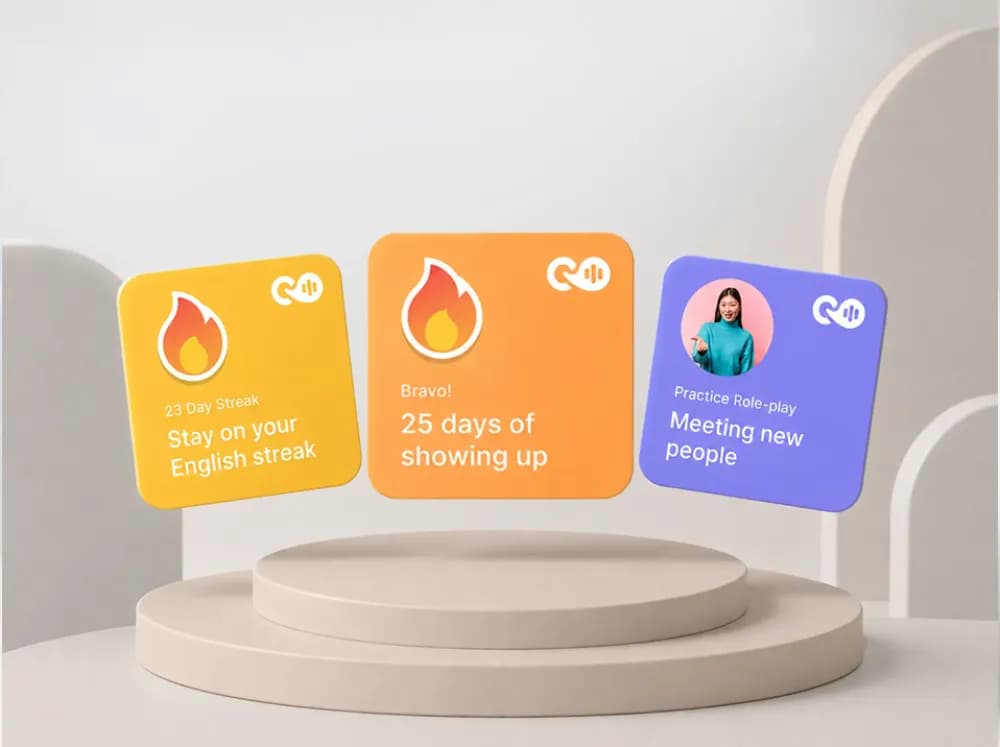
Add a Loora widget and see your streak, your next role-play, or today’s lesson every time you unlock your phone. A small nudge that keeps you showing up.
Loora widgets are here. Your streak, your next lesson, right on your home screen. A small nudge that keeps you showing up.
What Loora widgets do
The hardest part of building a habit isn’t starting – it's being consistent. Loora widgets nudge you to keep on track. Loora widgets solve exactly that.
Once you add the widget, it works in the background and nudges you to take action to keep on course. When you’re on a streak, it reminds you to keep it going – or celebrates that you already did. When you haven’t practiced in a few days, it surfaces a role-play or article worth opening. When you’ve been away too long, it just says “It’s never too late” – no guilt, just an invitation.
You don’t configure anything. The widget reads where you are and adjusts. The result is a home screen that quietly keeps your English moving, even on the days you weren’t planning to practice.
Why a home screen widget keeps you more consistent
Most learners don't intentionally quit because they stop wanting to practice, they just forget to turn up. A widget on your home screen turns Loora into something you see, not something you have to remember.
The streak number alone is a strong pull. Most people don’t want to break a 23-day run.
How to try it
- Long-press an empty spot on your home screen.
- Tap the “+” in the top corner.
- Search for “Loora” and pick your widget size.
- Tap “Add Widget”.
Tap any Loora widget anytime to jump straight into the app.
Does Loora have a home screen widget?
Yes. Loora offers home screen widgets for iPhone that adapt based on your activity – showing your streak, upcoming lessons, or a come-back prompt depending on where you are in your learning.
What do Loora widgets show?
If you’re on an active streak, the widget shows your streak count and encourages you to keep it going. If you haven’t practiced in a few days, it surfaces a recommended lesson. After a longer break, it switches to a simple come-back message.
How do I add a Loora widget to my iPhone?
Long-press an empty spot on your home screen, tap “+”, search for “Loora”, pick your widget size, and tap “Add Widget”.